> ## Documentation Index
> Fetch the complete documentation index at: https://fossorial-docs-pangolin-helm-devel-prerelease.mintlify.site/llms.txt
> Use this file to discover all available pages before exploring further.
# RDP
> Control a Windows computer remotely through a full RDP client rendered in the browser
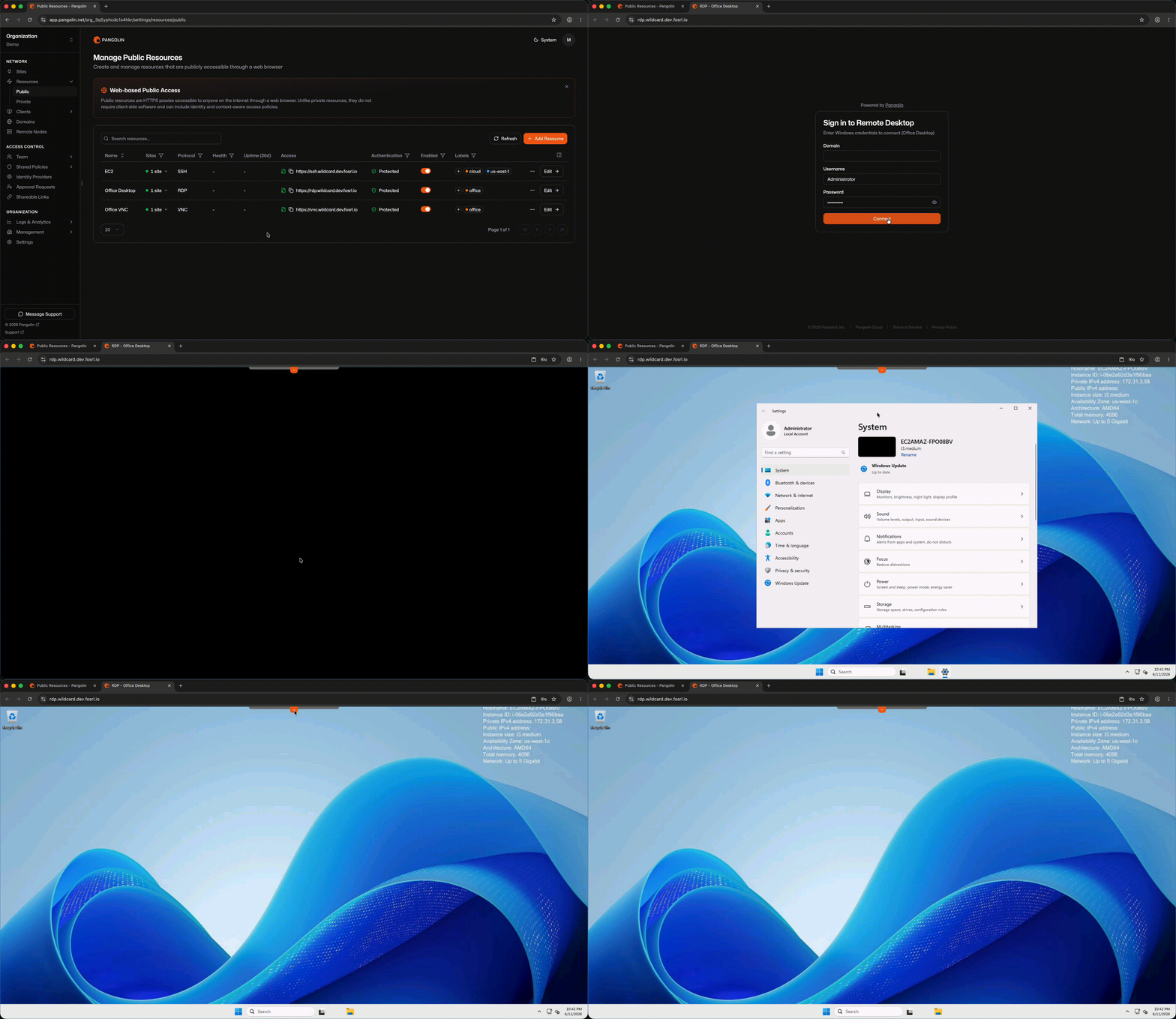
RDP public resources render a full Remote Desktop Protocol client in the browser. Users visit a FQDN, complete Pangolin authentication, and get an interactive Windows desktop session—including file transfers, clipboard copy/paste, and standard RDP features—without installing remote desktop software.
 ## Video Walkthrough
## How It Works
1. You assign a FQDN on a domain managed in Pangolin.
2. The user completes [authentication and access rules](/manage/resources/public/authentication) in the browser.
3. Pangolin renders the RDP session and proxies traffic to the Windows host through a site connector.
No Pangolin client is required. Any modern web browser is sufficient.
## Site and Host Configuration
RDP public resources do **not** use [targets](/manage/resources/public/targets). Instead, you:
1. Select which sites can route to the resource.
2. Enter the backend Windows host and RDP port (default `3389`).
Pangolin routes through the site that is online and healthiest, using the same intelligent multi-site routing model as [private resources](/manage/resources/private/multi-site-routing).
## Authentication and Access Rules
RDP public resources are protocol-aware and support the full set of Pangolin [authentication and access rules](/manage/resources/public/authentication), including platform SSO, identity providers, user/role assignments, and context-based allow/deny rules. You can share these settings across resources with a [resource policy](/manage/resources/public/resource-policies).
RDP session credentials (Windows username and password) are entered in the browser-rendered client after Pangolin authentication succeeds.
## Video Walkthrough
## How It Works
1. You assign a FQDN on a domain managed in Pangolin.
2. The user completes [authentication and access rules](/manage/resources/public/authentication) in the browser.
3. Pangolin renders the RDP session and proxies traffic to the Windows host through a site connector.
No Pangolin client is required. Any modern web browser is sufficient.
## Site and Host Configuration
RDP public resources do **not** use [targets](/manage/resources/public/targets). Instead, you:
1. Select which sites can route to the resource.
2. Enter the backend Windows host and RDP port (default `3389`).
Pangolin routes through the site that is online and healthiest, using the same intelligent multi-site routing model as [private resources](/manage/resources/private/multi-site-routing).
## Authentication and Access Rules
RDP public resources are protocol-aware and support the full set of Pangolin [authentication and access rules](/manage/resources/public/authentication), including platform SSO, identity providers, user/role assignments, and context-based allow/deny rules. You can share these settings across resources with a [resource policy](/manage/resources/public/resource-policies).
RDP session credentials (Windows username and password) are entered in the browser-rendered client after Pangolin authentication succeeds.